
Event Log Transformer
The Event Log Transformer is used in all versions of process.science for Power BI to prepare the data based on csv event logs.
Usage
The process.science Event Log Transformer is a browser-based application that operates entirely locally within your browser. All data processing occurs on your device, ensuring that no data, with the exception of license information, leaves your network. For those who prefer a desktop experience, you can install the application locally (EventLogTransformer-X.X.X-setup.exe). This installation is simply a wrapper for the web application, providing the same functionality with a desktop interface. The URL is https://transformer.process.science.
Import license file
If you start the transformer you need to import your license file. Therefore just drag the provided .pslicense file onto the drop zone or select it from the file system.
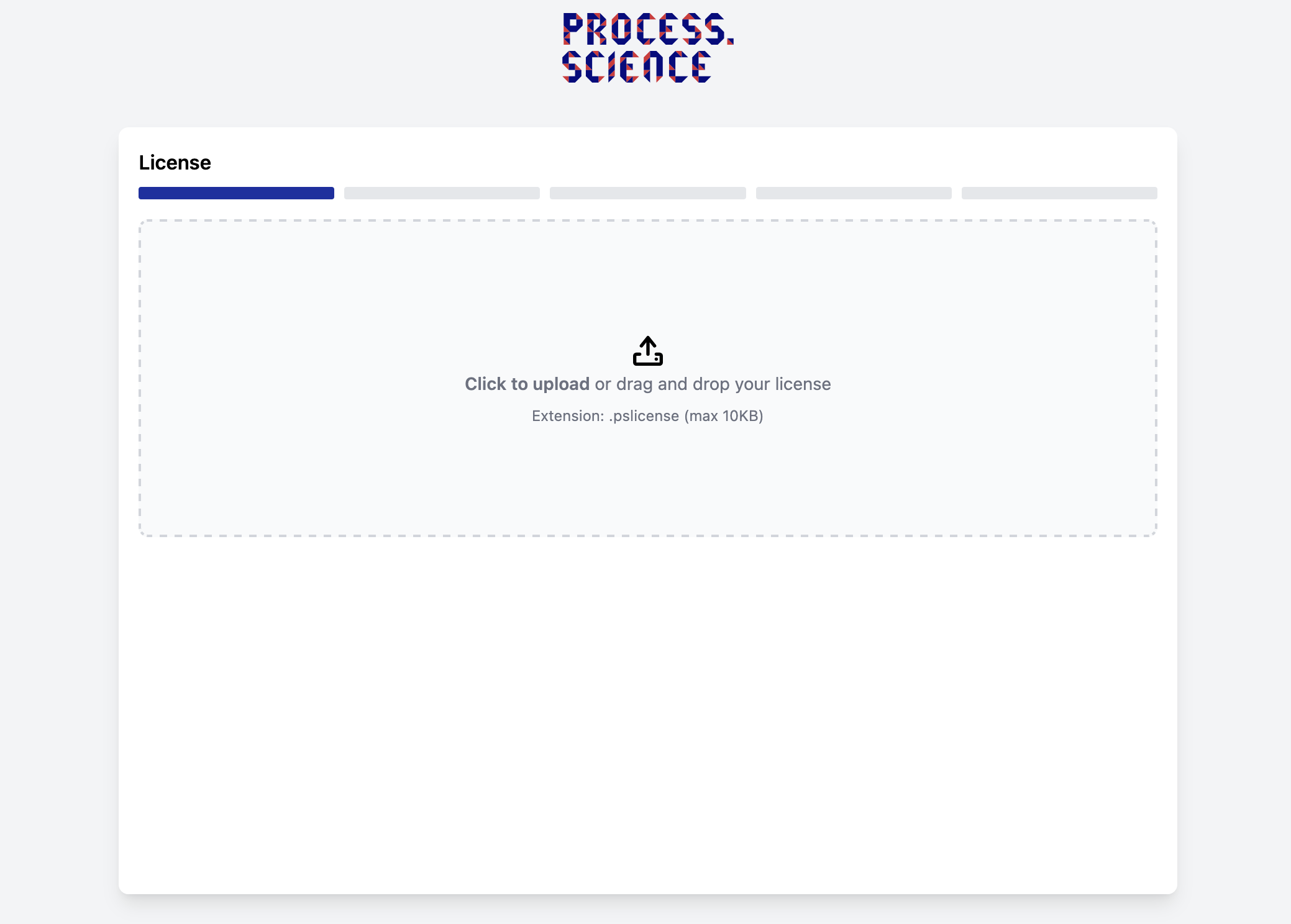
Upload file
Important
If you experience encoding problems change the file encoding to UTF-8 using e.g. Notepad++.
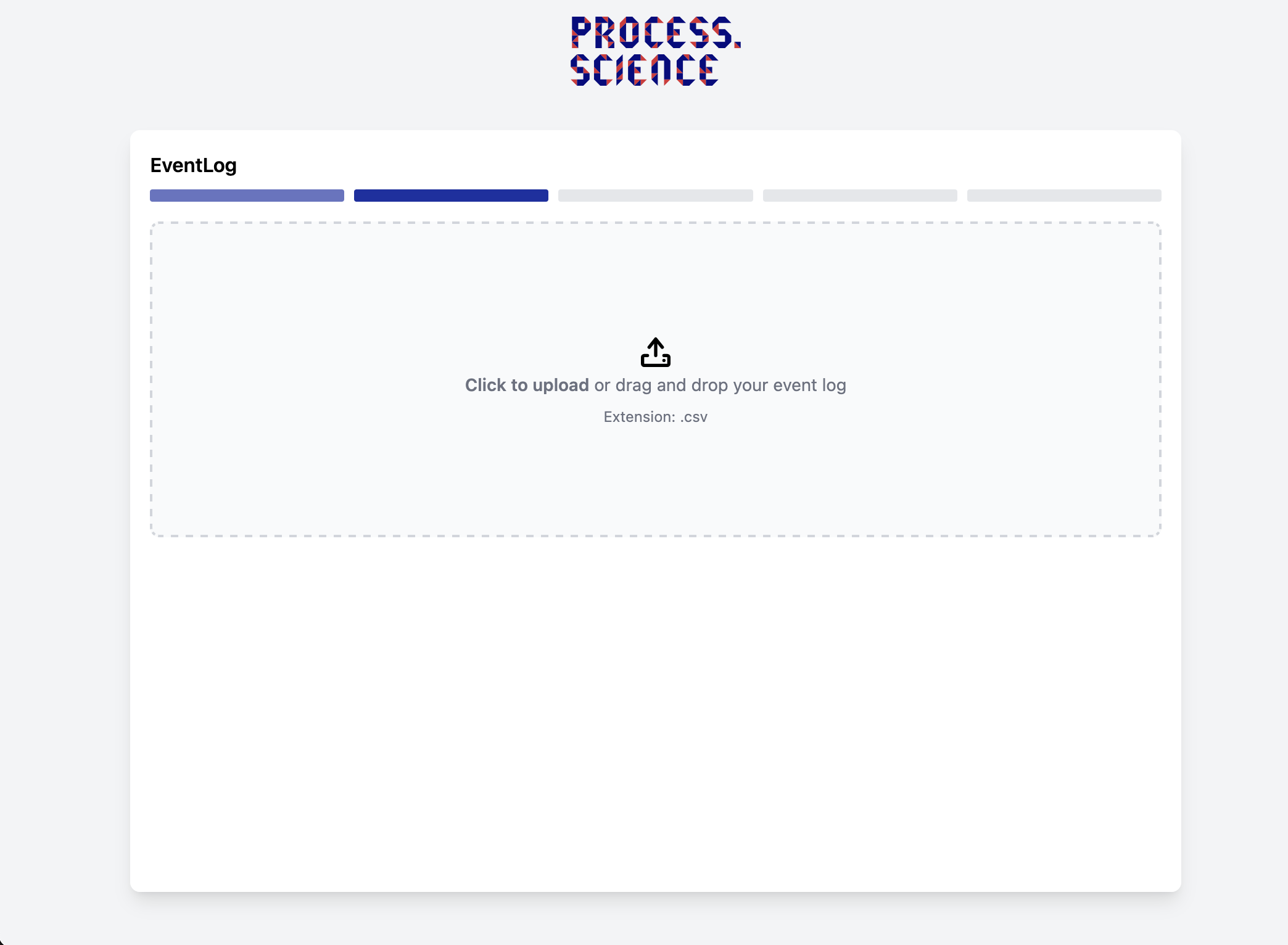
On the second page, the source file is uploaded. This is done either by dragging it onto the grey area or by selecting it in the selection window that opens after clicking on the button "Drag file or click to upload". If the file can be read and at least three fields can be identified, the upload button turns green and you can proceed to the next step. Your file needs to be a csv file of any sort.
Verify and adjust the assignment of the fields
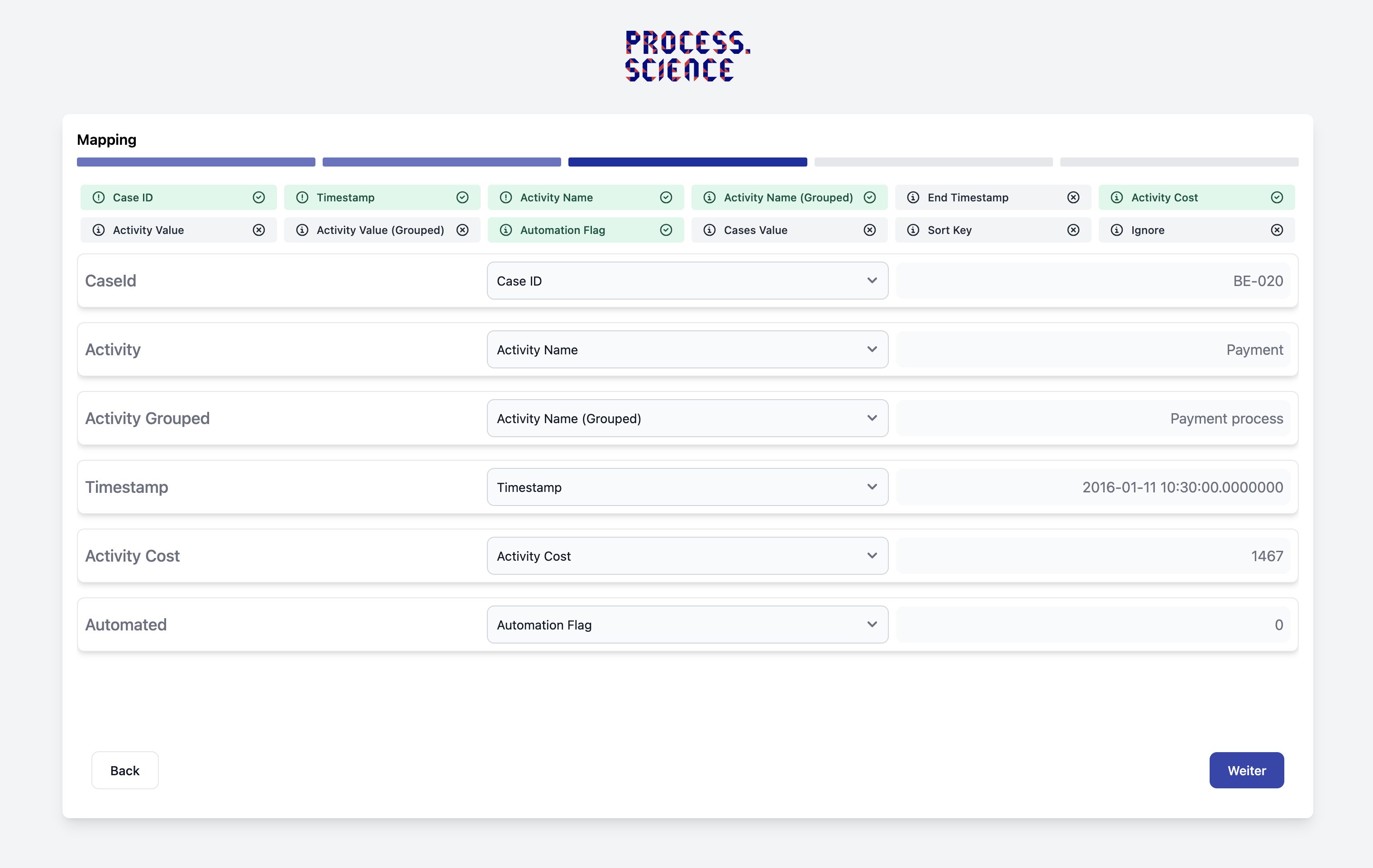
In the next step, the assignment of the recognized fields to the process mining types must be verified and adjusted. If the minimum requirements are met, the transformation can be started.
| Field Name | Description | Mandatory | Can only occour once |
|---|---|---|---|
Case Id | Through this field the process instances can be differentiated | ✓ | ✓ |
Activity Name | This field describes the activity that has taken place | ✓ | ✓ |
Activity Name Grouped | This field describes the group of the activity that has taken place | ✗ | ✓ |
Timestamp | This field describes when an event has taken place | ✓ | ✓ |
End Timestamp | This field can be used to calculate the duration of activities | ✗ | ✓ |
Sort Key | This field can be used to adjust the sorting of the event log | ✗ | ✓ |
Activity Cost | This allows you to set the costs for the current event | ✗ | ✓ |
Automation Flag | This allows you to set wether the activity was automated or not | ✗ | ✓ |
Additional Activity Values | Further information per activity, e.g. quantity of items | ✗ | ✗ |
Additional Cases Values | Further information per activity, e.g. a company division | ✗ | ✗ |
Additional Activity Values Grouped | Further information per activity group, e.g. quantity of items | ✗ | ✗ |
Transformation and loading the data into Power BI
After the previous steps are completed, the data is transformed, and the result files are saved in the same directory as the input file.
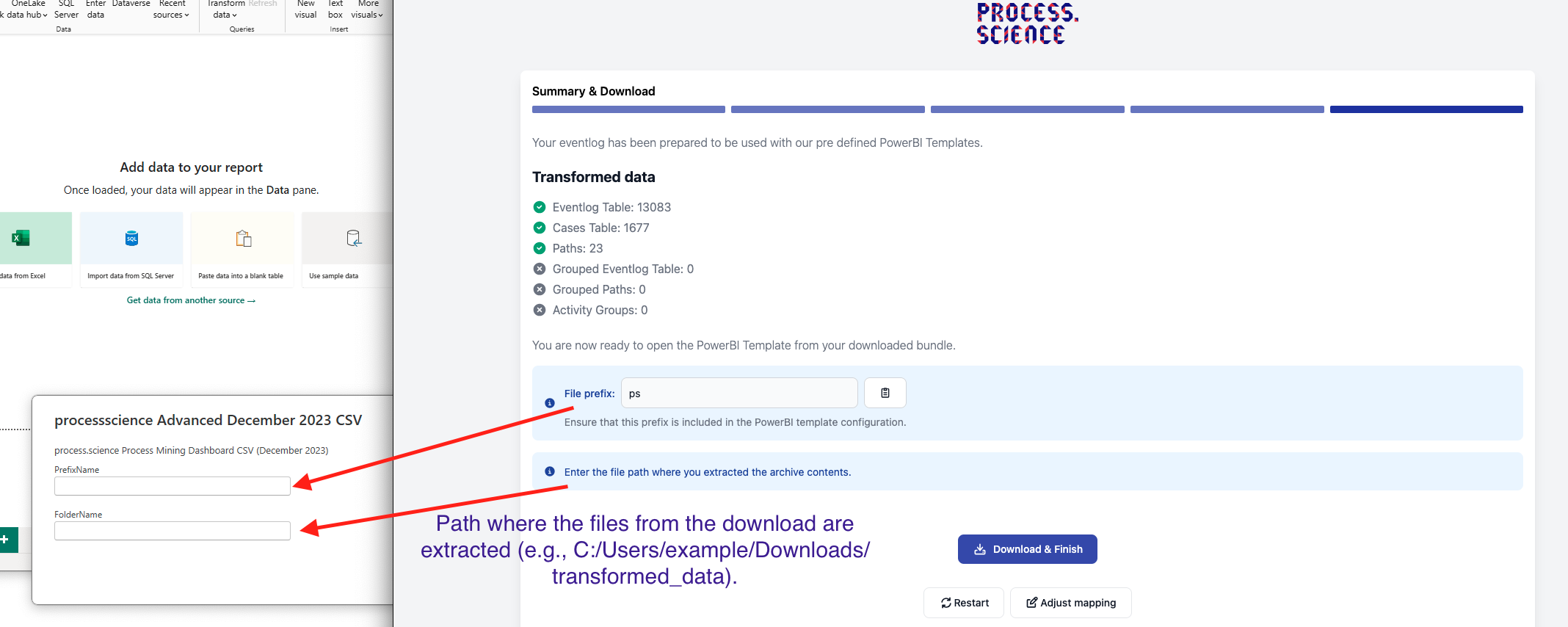
On the result page, the prefix used and the file directory in which the output files are located (in case of the installed version, otherwise select the path of the extracted archive manually) are displayed again. These two pieces of information must be copied to the template file delivered with the product.
Tip
You can copy the File Prefix and the File Path by clicking on the little icon at the end of each line.
Important
If this is the first time opening the template file you need to import the license key into the report.